
Introduction
LibreCAD is an open source computer-assisted design (CAD) application focused on technical drawing in two dimensions. Available for Windows, MacOS and Linux, it offers a family interface for those coming from AutoCAD and other commercial tools, but not licensed. In this article we will explore its most outstanding features, the advantages it offers to students, fans and professionals, and how to start using it effectively.
What is LibreCAD?
LibreCAD is born as a fork of QCAD Community Edition and has evolved thanks to an active community of developers and users. Its main objective is to provide a complete 2D drawing environment, capable of handling layers, blocks, heights and standard file formats such as DXF and DWG (using plugins). Being fully free and open source, anyone can inspect, modify and redistribute the software according to the GPL v2 license.
Main characteristics
- Customizable toolbar interface and context menus.
- Support for multiple coordinate and unit systems (metric, imperial).
- Complete set of drawing tools: lines, arches, circles, polygons, splines and text.
- Advanced editing functions: displacement, mirror, rotation, scale and array.
- Management of layers with color control, line type and visibility.
- External blocks and references for reuse components.
- Endowment and tolerances according to ISO, ANSI and other standards.
- Import and export of DXF, DWG (via Teigha), SVG and PDF.
- Printing and drawing with scale and sheet configuration.
Advantages to other CAD tools
One of the greatest advantages of LibreCAD is its zero cost, which eliminates the economic barrier for students and small businesses. As a multiplatform, users can work on the same file from different operating systems without compatibility problems. In addition, open source nature guarantees transparency and allows the community to quickly correct errors and add functionalities by plugins or scripts.
Compared to proprietary programs, LibreCAD may lack some advanced 3D modeling or finite element analysis modules, but for only 2D projects it offers solid performance and a soft learning curve, especially if you already have experience with AutoCAD or DraftSight.
Installation and first steps
To install LibreCAD, just visit the official sitelibrezad.organd download the installer corresponding to your operating system. In Linux, most distributions include it in their repositories (e.g.,sudo apt install librecadin Ubuntu). After installation, a welcome screen is displayed when you start the program where you can create a new drawing or open an existing one.
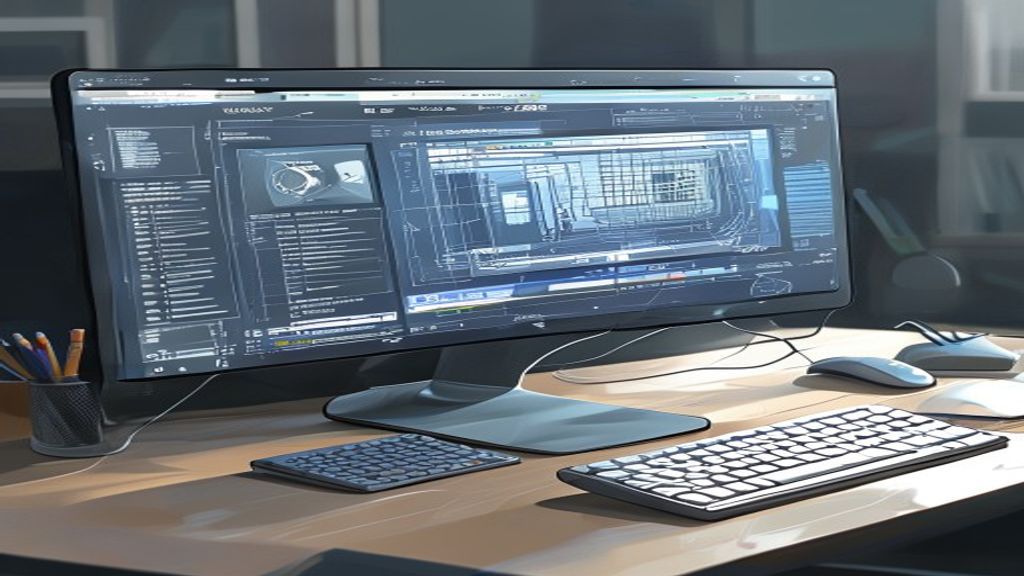
The working environment consists of a top menu bar, a docking toolbar that can be dragged anywhere in the window, and a drawing area with adjustable grid. It is recommended to start by configuring the units and scale of the drawing in the menuSettings → Draw → Units. From there, you can activate the grid view, adjust the spacing and define the limits of the sheet.
Community and learning resources
LibreCAD has an active forum, a detailed wiki and numerous video tutorials available on platforms such as YouTube. The project also maintains a repository of free examples and blocks that users can download and integrate into their own designs. Participating in the community not only helps resolve doubts, but also helps to contribute to improvements, translations or error reports.
- Official forum:forum.librezad.org
- Wiki and documentation:wiki.librebrad.org
- YouTube Channel:Official
- Block repository in GitHub:
github.com/LibreCAD
Conclusion
LibreCAD is positioned as a viable and powerful alternative for anyone who needs to make 2D designs without incurring license costs. Its compatibility with standard formats, its intuitive interface and the support of a global community make it an attractive option for students, hobbyists and professionals who seek freedom and flexibility in their design workflow. If you have not yet tried it, we invite you to download it and explore all the possibilities offered by this open source software.

