
Introduction to Linux Storage Management
In the Linux-based operating systems ecosystem, efficient disk space management is essential for system performance and stability. A key tool for users of graphic environments is KDiskFree, a utility specifically designed to provide intuitive display of the use of storage in distributions using the KDE Plasma platform. Unlike line commands likedfordu, KDiskFree offers a graphic interface that facilitates rapid understanding of the health of storage.
What is KDiskFree?
KDiskFree is a resource management application that is deeply integrated with the KDE desktop environment. Its main function is to allow users to view the use of hard drive, partitions and file systems in a visual and colorful way. This helps quickly identify which directories or files are consuming more resources, allowing more effective cleaning before the system reaches its capacity limit. The tool takes advantage of KDE's capabilities to provide a design consistent with the rest of the system.
Main characteristics
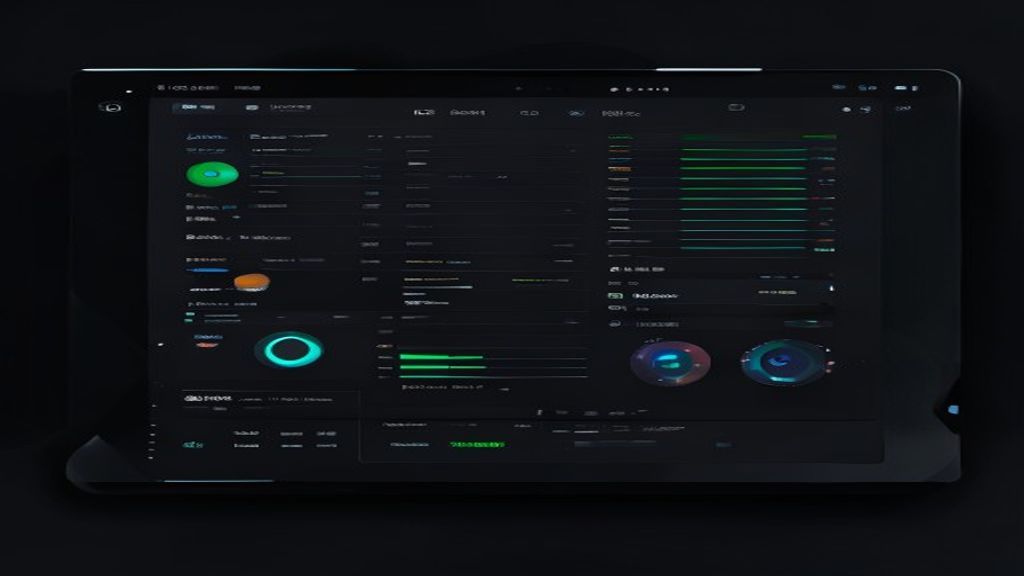
The KDiskFree interface is clean and direct. When opening the application, the user is found with progress bars that represent the use of each mounted partition. The colors indicate the level of filling: green for available space, yellow for warning and red for critical space. In addition, the tool allows you to click on a bar to see a detailed breakdown of the files and folders that occupy the space, facilitating the identification of temporary files, old logos or obsolete downloads that can be removed to release space.
Installation in Different Distributions
To install KDiskFree in a Debian or Ubuntu-based distribution, you can use the package managerapt. The command would besudo apt updatefollowed bysudo apt install kdeutilsorkdfif available in the repository. In Arch Linux systems or derivatives like Manjaro, the installation is done bysudo pacman -S kdf. For Fedora users, the commandsudo dnf install kdfIt usually works properly. It is important to check whether the tool is already included in the default installation of the KDE package manager.
Use and Functionality
Once installed, KDiskFree can be launched from the KDE application menu. When running, it shows a window that lists all the mounted partitions. The information is updated in real time if properly configured, although by default it usually shows the current status at the time of launch. The ability to export reports or take screenshots of the disk situation is another valuable function to document the system status before performing massive cleaning or security updates.
Comparative with Command Line Tools
While line commands offer technical accuracy and speed for advanced users, KDiskFree democratizes disk management for average users. However, it does not replace the need to know commands likefindorrmto remove problematic files. KDiskFree acts as a layer of visual abstraction on these complex operations. For example, if the bar shows that a folder is large, the user can click to view its content and decide which files are safe to delete, reducing the risk of deleting important data by error.
Maintenance and Cleaning of Space
The regular use of KDiskFree is part of a proactive maintenance strategy. It is recommended to review the status of the disk at least once a month. If use is found to exceed 80-90%, the origin of excessive consumption should be investigated. Tools likejournalctlcan help clean system logs that often occupy large amounts of space. In addition, temporary application files such as browsers or text editors can be quickly accumulated. KDiskFree facilitates the identification of these space accumulators.
Conclusion
KDiskFree is a valuable tool within the KDE ecosystem that improves user experience by providing a clear and accessible display of storage use. Its native integration with the desktop environment ensures a consistent experience of fluent and aesthetic use. Although there are alternatives in the command line, the simplicity and clarity KDiskFree offers make it a recommendation for Linux system administrators that prioritize graphical usability. Maintaining the system monitored with this tool contributes to optimal performance and avoids the frustration of a system full of insufficient space.

