
Introduction
Terminator is a terminal emulator designed specifically for Linux users who need to work with multiple simultaneous sessions without losing productivity. Its focus on panel division and customization makes it an essential tool for developers, system administrators and command line enthusiasts.
What is Terminator?
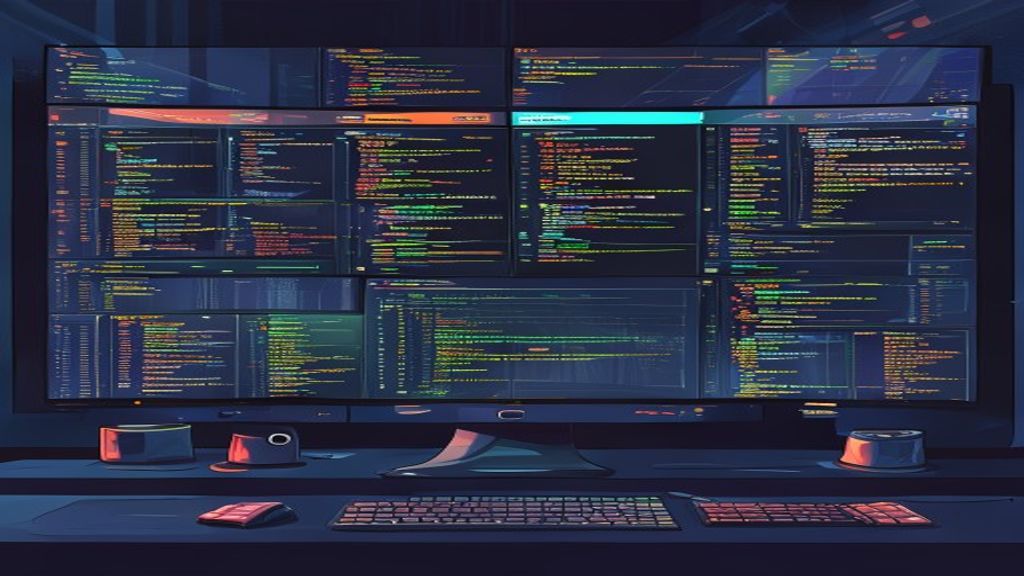
Terminator is a GTK + application that allows you to open several terminals within a single window, organized in a grid of panels that can be redimensioned and moved at will. Unlike traditional terminals, it offers a similar mosaic experience to tiling window managers, but within the application itself.
Main characteristics
- Unlimited horizontal and vertical division of panels.
- Saving and loading of designs through profiles.
- Support to drag and drop text between panels.
- Integration with the system clipboard.
- Incorporated search engine with coincidences highlighted.
- Compatibility with terminal GNOME profiles and other profile options.
Installation in popular distributions
In Ubuntu and derivatives, the package is available in the official repositories:
- sudo apt update
- sudo apt install terminator
In Fedora can be installed with DNF:
- sudo dnf install terminator
In Arch Linux and its derivatives, the package is in the community repository:
- sudo pacman -S terminator
For users who prefer to compile from the source code, the official repository in GitHub provides detailed instructions.
Basic use and keyboard shortcuts
When you launch Terminator, you open a window with a single panel. The most useful shortcuts are:
- Ctrl + Shift + E: divide the current panel horizontally.
- Ctrl + Shift + O: divide the current panel vertically.
- Ctrl + Shift + W: close the focused panel.
- Ctrl + Shift + Q: leave Terminator.
- Ctrl + Shift + X: group all panels in one view (zoom).
- Ctrl + Shift + Z: return to the previous divided view.
These shortcuts allow you to quickly create complex designs without using the mouse.
Profile creation and management
The profiles in Terminator keep settings such as colors, source, scroll behavior and start commands. To create a new profile:
- Right-click on any panel and select Settings.
- Go to the Profiles section and press the New button.
- Assign a name and adjust the desired parameters.
- Save and assign the profile to a panel using the profile menu.
It is also possible to load and save complete windows designs using the Designs menu, which makes it easier to change between different working environments.
Advanced personalization
Terminator allows to adjust cursor behavior, background opacity and reporting activation. Some interesting options include:
- Activate the infinite displacement option to review large outputs.
- Configure real transparency by a composer like Compton or Picom.
- Define boot commands that run automatically when opening a panel (e.g. start tmux or SSH session).
- Set match rules for certain profiles to be applied automatically when a panel with a specific title is opened.
Integration with other tools
Thanks to its ability to divide panels, Terminator is naturally combined with multiplexers such as tmux or screen. For example, you can open a panel with tmux and, within it, create additional sessions, while other panels are used for code editing, log monitoring or test execution.
It also works well with development tools like VS Code in remote mode, allowing the terminal to always be in sight without alternating between windows.
Tips and tricks to increase productivity
- Save frequent designs (for example, a code panel, a log panel and a database console) and cargals with a single click.
- Use the search function (Ctrl + Shift + F) to quickly locate text on any panel without leaving the keyboard.
- Take advantage of drag and drop to move commands or output between panels, which makes it easier to reuse results.
- It sets a dark background profile and clear text to reduce visual fatigue during long sessions.
- It activates the activity notification option so that Terminator will let you know when a panel produces output after a period of silence.
Conclusion
Terminator stands out as one of the most flexible and powerful terminal emulators available for Linux. Your focus on panel division, deep customization and integration with other tools makes it an ideal option for anyone who seeks to maximize your efficiency in the command line. If you have not yet tried it, install it and explore its profiles and designs can transform the way you work with the terminal.

