
Introduction
In the world of Debian-based distributions, package management is an essential task to keep the system up to date, safe and free of unnecessary software. Although the command line offers total control by apt and dpkg, many users prefer a graphical interface that reduces the learning curve and allows you to clearly visualize what is being installed or eliminated. Synaptic has for years become one of the most popular options thanks to its combination of power and usability.
What is Synaptic?
Synaptic is a GTK + interface package manager specifically designed to work with Debian's APT repositories and their derivatives, such as Ubuntu, Linux Mint and others. Its main objective is to provide a detailed view of all available packages, allowing the user to mark actions such as install, update or delete, and then apply those changes in a controlled way. Unlike more modern software centers, Synaptic shows technical information such as dependencies, exact versions and status of each package, making it an ideal tool for advanced managers and users.
Installation
In most Debian-based distributions, Synaptic is not installed by default, but its incorporation is simple. Open a terminal and run:
- sudo apt update
- sudo apt install synaptic
After installation, you can launch Synaptic from the application menu or by commandsynaptic. In some versions of Ubuntu, you may need to enable the repository «unify» before the package is available.
Interface and navigation
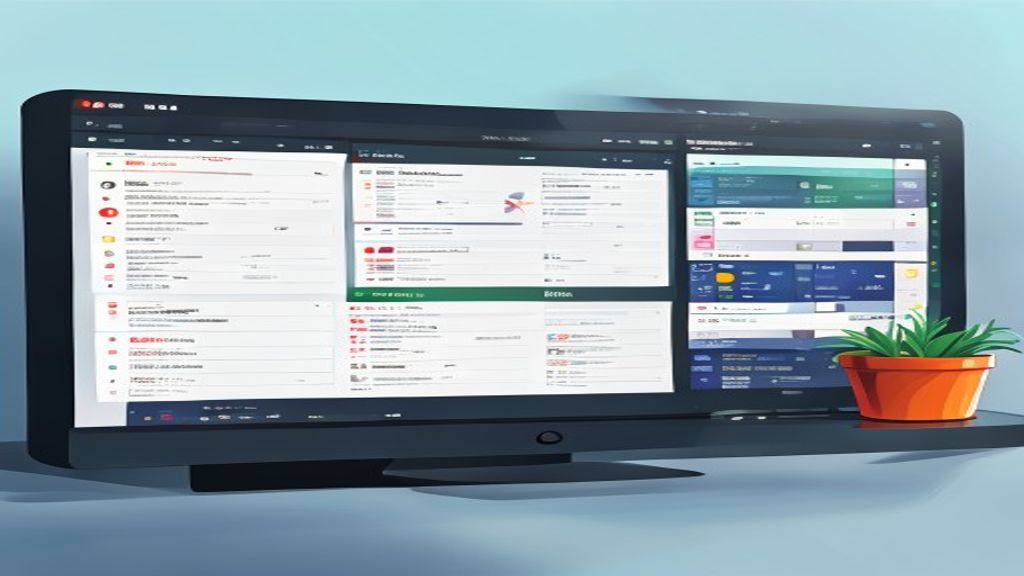
When you open Synaptic, a window is presented divided into three panels: the one on the left lists the package categories (per section, state or origin), the central shows the filtered packages according to the search or the applied filters, and the right displays the detailed description of the selected package. The toolbar includes buttons to recharge the index, search, mark all updates and apply changes. This provision allows you to work efficiently even with thousands of packages available.
Common operations
The typical workflow in Synaptic follows these steps:
- Click on the button «Search» to locate a package by name, description or keyword.
- Mark the box corresponding to the desired action: Install, Mark to update, Mark to delete or Mark to reinstall.
- Repeat the process with all the packages you need to modify.
- Press the button «Apply» for Synaptic to download and install the changes, automatically solving the dependencies and showing a summary before proceeding.
During the application, a record of the actions made is shown and final confirmation is requested, reducing the risk of removing essential packages by error.
Repository management
Synaptic also allows you to manage APT repositories from your interface. Through the menu «Settings» → «Repository», the user may:
- Add, edit or delete sources.list. lines
- Enable or disable commercial, source-code or third-party repository.
- Recharge package information to reflect changes made.
This functionality is useful when you want to test unstable version packages, add PPA in Ubuntu or simply keep the sources.list ordered and free of duplicate inputs.
Tips and best practices
To get the most out of Synaptic and avoid common problems, follow these recommendations:
- Always recharge the index before searching or installing packages (
sudo apt updateor the button «Recharge»). - Use the filter «State» to quickly see which packages are installed, updated or broken.
- Before applying massive changes, review the Synaptic summary to ensure that critical units are not removed.
- If you need to install a specific package of a different version, use the option «Specify version» in the package menu.
- Keep a record of changes made by taking screenshots or by scoring the actions in a text file, especially in production environments.
Alternatives to Synaptic
Although Synaptic remains a solid option, there are other graphic tools that can be better adapted to certain user profiles:
- GNOME Software: software center focused on desktop applications, with ratings and screenshots.
- Discover: default in KDE, integrates Flatpak and Snap packages in addition to the traditional DEB.
- Apper: another KDE alternative that offers a simple interface for updates and facilities.
- aptitude: Although it is a command line, its interactive mode provides a similar experience to Synaptic without requiring a graphic environment.
The choice depends on the level of detail required and the desktop environment used.
Conclusion
Synaptic remains a valuable piece in the arsenal of any Linux user working with Debian-based distributions. Its combination of power, transparency and flexibility makes it especially suitable for scenarios where detailed control over package management is needed, whether on production servers, development workstations or personal equipment requiring meticulous administration. Although the most modern interfaces have gained popularity for their simplicity, Synaptic shows that sometimes the classic tool remains the most effective when seeking precision and confidence.

